


How to Apply a carVertical Discount Code
Enter your code during checkout and check that the order total changes before you pay. This guide follows the checkout shown in the original screenshots. Prices, payment methods and offer eligibility can change, so use the live checkout to confirm the terms.
What is carVertical?
carVertical provides vehicle history reports using records from multiple sources. Depending on the vehicle and data available, a report may include:
- Damage history: Recorded accident or damage entries, where available.
- Mileage records: Readings that may help identify inconsistencies.
- Specs & equipment - Verify the car's original specifications
- Market information: Available estimates, which are not a formal valuation.
- Ownership-related records: Any entries found; these don’t prove that the seller owns the car.
- Safety ratings - Know the vehicle's safety score
- Exposure indicators: Available information about damage or location-related risks.
- Maintenance and service history records
- Title check: Branded-title records, such as salvage, junk, or flood, where available.
- Recalls: Open or past safety-recall records, where available.
- Timeline: Vehicle-related events presented chronologically, where available.
- Photos: Available vehicle photos.
The examples below use the prices shown in the original checkout screenshots. They’re examples only, not a current price list or confirmation that a code still works.
Where to Find carVertical Discount Codes
Codes may appear through the following channels. Check the source, eligibility and final checkout price before relying on an offer:
- Official carVertical promotions and newsletters
- Coupon websites and deal aggregators
- Affiliate partner websites
- Social media campaigns
- Seasonal sales (Black Friday, Christmas, etc.)
The original screenshots use GET20 as an example of a 20% voucher. This guide can’t confirm that GET20 is currently available or that it applies to every package. Use the offer link or enter the code you have, then check the result at checkout.
Step-by-Step Guide: How to Apply Your carVertical Voucher Code
Step 1: Visit the carVertical Website
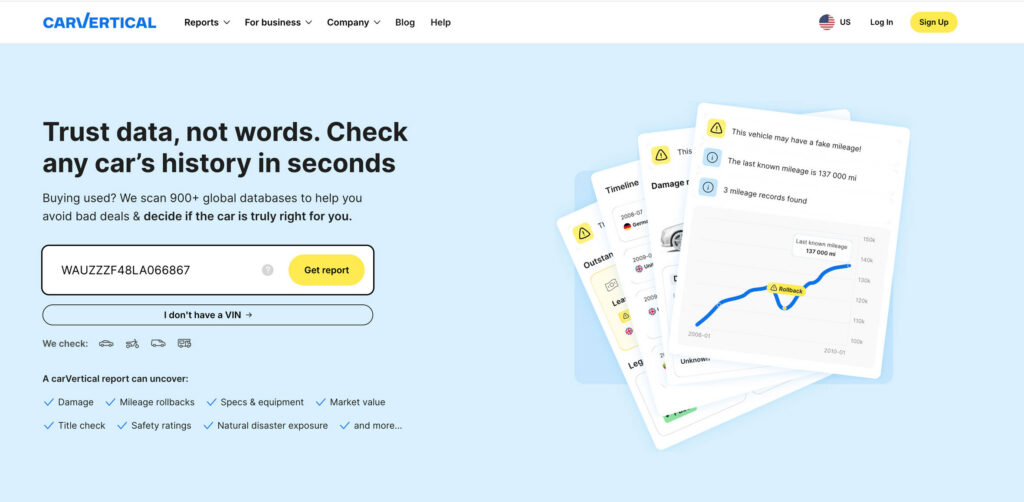
Open www.carvertical.com or follow the offer link on this page. The layout may look different from the screenshots; look for the vehicle search box or the report purchase page.
Before you continue, make sure the search covers the vehicle you want to check:
- Check the market and vehicle details shown by the service.
- Review what information may be available; a search result does not guarantee a complete history.
Step 2: Enter Your Vehicle's VIN Number
Locate the VIN input field on the homepage. Enter your vehicle's 17-character VIN (Vehicle Identification Number).
Where to find your VIN:
- On the dashboard (visible through the windshield)
- On the driver's side door jamb
- On vehicle registration documents
- On insurance cards
If your market offers a search by license plate number, you can use that option instead. Otherwise use the VIN from the vehicle and its documents.
Submit the VIN using the search button shown on the page.
Step 3: Vehicle Detection Confirmation
The service may show a vehicle-detection or pre-check screen. Read the details and confirm that they match the car you intend to check.
You'll see your vehicle information displayed, for example:
- Audi A4
- VIN: WAUZZZ8F48LA066867
This message only identifies the vehicle or the categories of data available; it doesn’t guarantee a complete history or that every incident will appear in a paid report.
Step 4: Select Your Pricing Plan
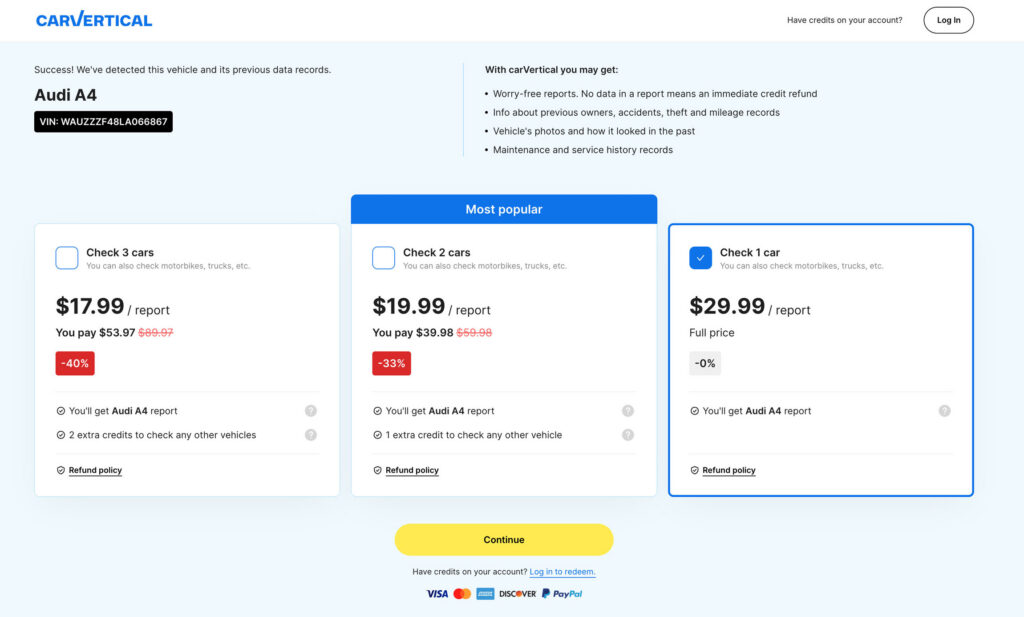
The original checkout displayed three package choices. The figures below describe those screenshots; compare the live total and the number of reports you actually need before selecting a package.
Screenshot Example: Three Reports
- $17.99 per report
- Total: $53.97 (
$89.97) - 40% OFF built-in discount
- Includes: Your selected car report + 2 extra credits for any other vehicles
Screenshot Example: Two Reports
- $19.99 per report
- Total: $39.98 (
$59.98) - 33% OFF built-in discount
- Includes: Your selected car report + 1 extra credit for another vehicle
Screenshot Example: One Report
- $29.99 per report
- Total: $29.99
- Full price (0% discount)
- Includes: Only the selected car report
Check whether the code applies to your selected package. Don’t assume a voucher can be combined with a package deal unless the checkout shows the lower total.
Check the report scope and applicable terms before paying:
- No-data policy: Read the provider’s current conditions for credits or returns.
- History records: Availability varies for ownership, accidents, theft and mileage.
- Photos: Historical images are included only where available.
- Service records: Maintenance history may be incomplete or unavailable.
- Refund terms: Review the policy that applies to your order.
Select your preferred plan and click the "Continue" button to proceed.
Step 5: Enter Your Email Address
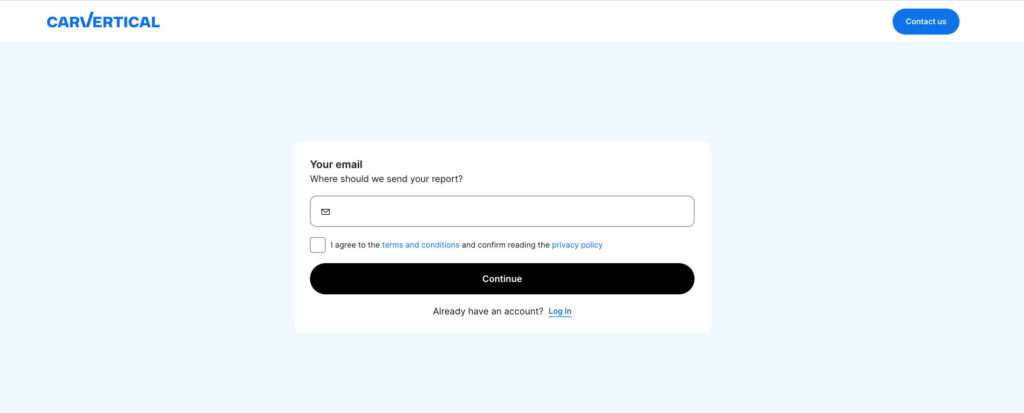
On the next screen, you'll be asked: "Where should we send your report?"
Enter your email address in the provided field. This is where carVertical will deliver your vehicle history report after purchase.
Important: Make sure to:
- ☐ Check the box to agree to the terms and conditions and confirm reading the privacy policy
If you already have a carVertical account, click "Log In" instead to access any existing credits.
Click the "Continue" button to proceed to the payment page.
Step 6: Find the Voucher Field
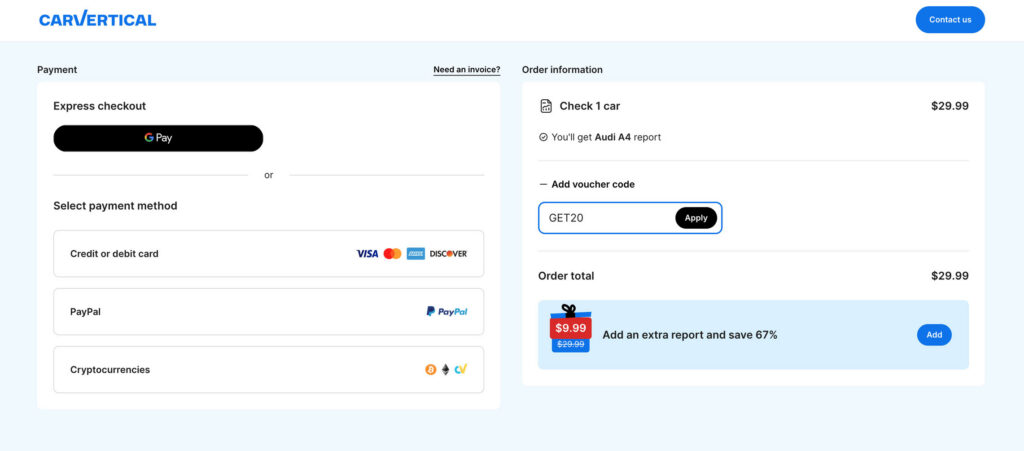
In the checkout shown here, the code field appears after selecting “Add voucher code” in the order summary. If the layout has changed, look for the equivalent voucher or promo-code option before payment.
In the original screenshot, the payment options and the order summary appear in separate columns. The methods available, and where they appear, may differ by market:
Left Side - Payment Options:
- Express checkout (Google Pay)
- Credit or debit card (Visa, Mastercard, American Express, Discover)
- PayPal
- Cryptocurrencies (Bitcoin, Ethereum, etc.)
Right Side - Order Information:
- Check 1 car: $29.99
- ✓ You'll get [Your Car Model] report
- Add voucher code: Select this option to reveal the input field.
- Order total: $29.99
Click on the "+ Add voucher code" text to expand the discount code input field.
Step 7: Enter Your carVertical Promo Code
After clicking "+ Add voucher code", the section will expand to reveal:
- A text input field for your code
- An "Apply" button
To apply your carVertical coupon code:
- Click inside the text input field
- Type your carVertical promo code (e.g., GET20)
- Make sure there are no extra spaces before or after the code
- Click the "Apply" button
The system will validate your code and apply the discount if valid.
Step 8: Verify Your Discount Has Been Applied
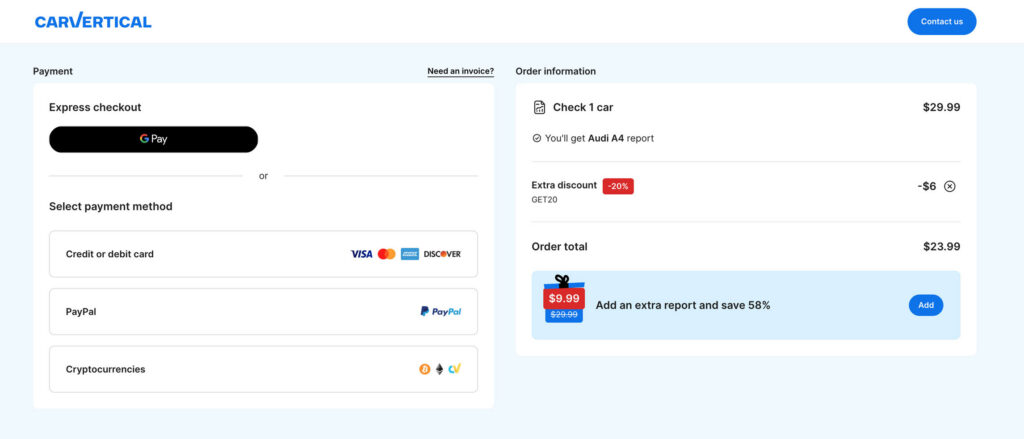
If the code is accepted, check the updated order summary. The figures below show the original GET20 example, rather than a promise of the price you will pay:
Before applying code:
- Check 1 car: $29.99
- Order total: $29.99
After applying GET20 code:
- Check 1 car: $29.99
- Extra discount -20% (GET20): -$6 ✕
- Order total: $23.99
You'll notice several changes:
- Extra discount badge - Shows the percentage discount (e.g., -20%)
- Discount code displayed - Shows your code name (e.g., GET20)
- Savings amount - Shows how much you're saving (e.g., -$6)
- Remove option - An ✕ button appears if you want to remove the code
- Updated total - The Order total reflects your new discounted price
Proceed only after the order summary shows the discount and total you expect.
Step 9: Consider the Extra Report Offer (Optional)
The original checkout also displayed an optional extra-report offer. Check whether it is available, its current price and any expiry conditions:
"Add an extra report and save 67%"
- Special price: $9.99 (
$29.99) - Click "Add" to include this offer
Consider an extra report only if you expect to use it and understand the conditions. Possible uses include:
- Checking another car you're considering
- Helping a friend or family member
- Future vehicle purchases
Step 10: Select Your Payment Method
Choose from the payment methods currently offered for your market. The original screenshots showed the following examples:
Express Checkout
- Google Pay - Fast one-click payment using your Google account
Standard Payment Methods
- Credit or debit card - Accepts Visa, Mastercard, American Express, and Discover
- PayPal - Secure payment through your PayPal account
- Cryptocurrencies - Pay with Bitcoin, Ethereum, or other supported cryptocurrencies
Step 11: Complete Your Purchase
Follow the prompts for your selected payment method to complete the transaction. After successful payment, carVertical will:
- Confirm your order once the payment goes through.
- Generate your vehicle history report
- Send the report to your email address
- Provide access through your carVertical account (if registered)
carVertical Discount Code Examples
The table below illustrates the percentage calculations used in the original guide. It doesn’t mean every code or rate is currently valid:
| Original Price | Code | Discount | You Save | Final Price |
|---|---|---|---|---|
| $29.99 | GET20 | 20% | $6.00 | $23.99 |
| $29.99 | GET10 | 10% | $3.00 | $26.99 |
| $29.99 | GET30 | 30% | $9.00 | $20.99 |
| $39.98 (2 cars) | GET20 | 20% | $8.00 | $31.98 |
| $53.97 (3 cars) | GET20 | 20% | $10.79 | $43.18 |
Note: Discount codes and their values may vary. Always check for the latest active codes.
Can You Combine Offers?
Whether a voucher combines with another promotion depends on the offer terms and the result shown at checkout. Use these checks before paying:
- Compare a multi-car package only if you need the additional reports.
- Enter the voucher and check whether it reduces the selected package total.
- Add an extra report only after checking its price and conditions.
Example calculation, valid only if both reductions are accepted:
- 3-car package: $53.97 (40% off from $89.97)
- Apply GET20 code: Additional 20% off
- Final price: ~$43.18
- Total savings: Over 50% off regular prices!
Frequently Asked Questions About carVertical Discount Codes
Can I use multiple carVertical promo codes on one order?
Use the voucher field provided and check the current offer terms. Do not assume that multiple codes or package discounts can be combined; the accepted code and final total should be visible before payment.
Do carVertical discount codes expire?
Yes, most carVertical coupon codes have expiration dates. Always check the validity period of your code before attempting to use it.
Can I apply a code after purchasing?
Unfortunately, carVertical voucher codes must be applied before completing your purchase. The discount cannot be applied retroactively.
Are carVertical promo codes case-sensitive?
Enter the code exactly as supplied, without extra spaces. If it is rejected, check its terms or ask the provider; do not assume that every code treats letter case the same way.
Where is the voucher code field on carVertical?
The voucher code field is located on the payment page, in the Order Information section on the right side. Look for "+ Add voucher code" and click to expand it. This is a commonly missed step!
Can I use a carVertical discount code on the mobile website?
Look for the voucher option during mobile checkout as well. Its position may differ from the desktop screenshot; confirm the accepted code and final price before paying.
Summary: Quick Guide to Applying Your carVertical Voucher
- ✅ Go to carvertical.com
- ✅ Enter your VIN number
- ✅ Select your pricing plan
- ✅ Enter your email address
- ✅ On payment page, click "+ Add voucher code"
- ✅ Enter your carVertical discount code
- ✅ Click "Apply"
- ✅ Verify discount is shown in Order total
- ✅ Select payment method
- ✅ Complete purchase and receive your report!
Conclusion
The key steps are to open the voucher field, enter the code and confirm the revised order total before payment. A code’s value, eligibility and validity depend on the offer; this guide can’t guarantee a fixed saving.
Compare the total cost with the number of reports you need. A bigger package or an extra report only makes sense if the terms suit you and you expect to use it.
Keep the order confirmation and check how to access the purchased report. If the code or price is not what you expected, sort it out with the provider before you complete payment.